How it works
How to turn a picture into a retro game: GBC, GBA, DS, N64 or GameCube
To turn a picture into a retro game, open img2retro.com, pick the console, add your picture (upload it, generate it from a few words, or transform a photo), choose what it becomes in the game, and describe the game in a sentence or two. Press Build my game and sign in; an AI agent then writes the game for that console's own engine, plays it and fixes it while you watch, usually in a few minutes. You play the result in your browser and share it by link.
Also in: Español · Deutsch · Français · Português · Italiano · Nederlands · Svenska · Norsk · Bahasa Indonesia · Türkçe · Polski · Tiếng Việt · Русский · 日本語 · 한국어 · 繁體中文
On this page
Below is every step, what your picture turns into on each console, what it costs, and what you get at the end.
1. Pick the console
The first row of the start card is the console picker: Game Boy Color (1998), Game Boy Advance (2001), Nintendo DS (2004), Nintendo 64 (1996), GameCube (2001), and Godot for a modern game with no hardware limits. GBA is picked by default, because it keeps more of a picture than the Game Boy Color and builds fast.
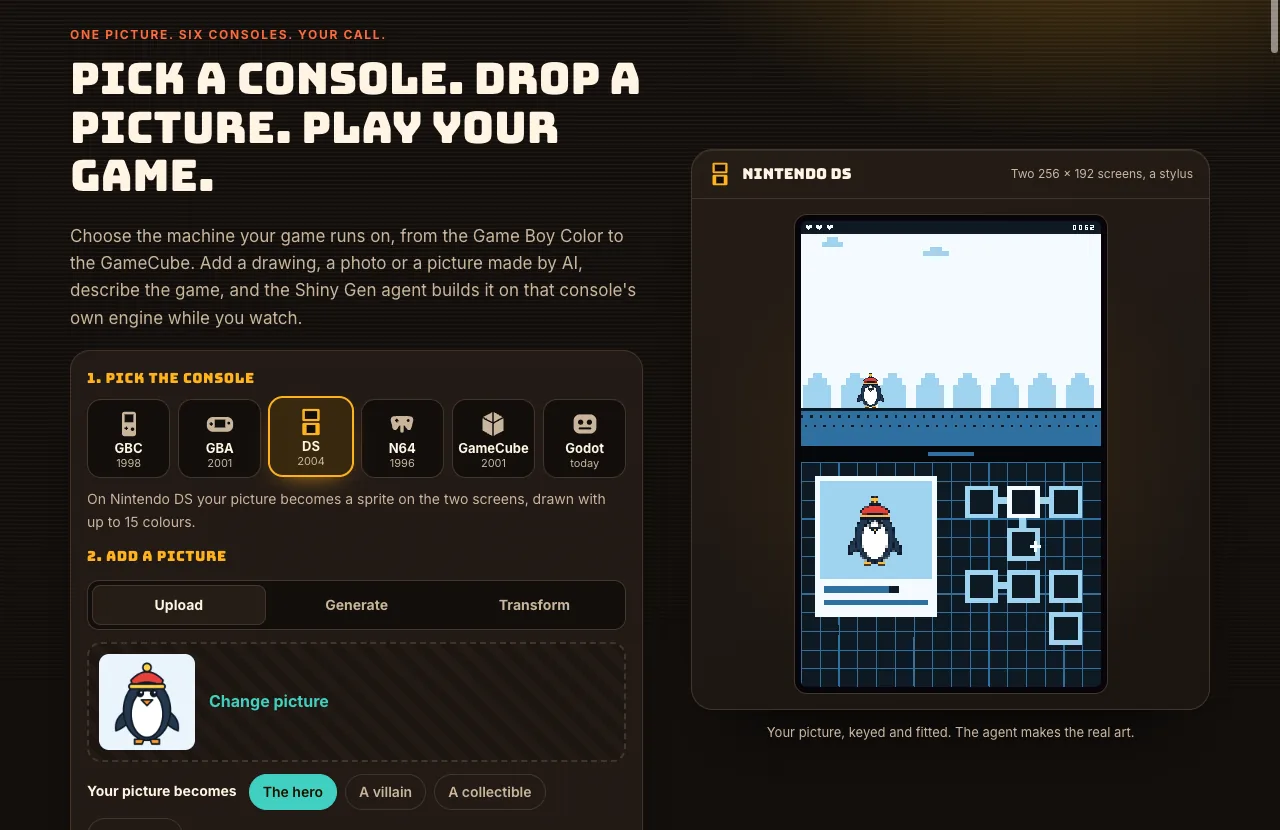
Pick the look you want, because each machine treats a picture differently:
| Console | Screen | Your picture becomes | Good for |
|---|---|---|---|
| Game Boy Color | 160 x 144 | a 16 x 16 sprite, four colors | bold, simple pictures |
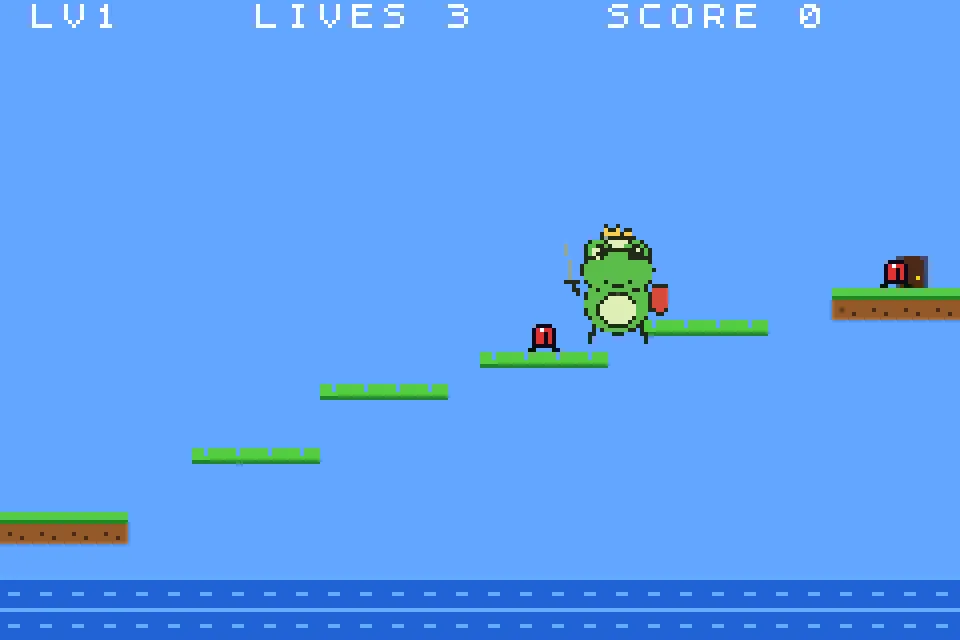
| Game Boy Advance | 240 x 160 | a 32 x 32 sprite, up to 15 colors | detailed characters, platformers |
| Nintendo DS | two 256 x 192 screens, a stylus | a sprite, or a cut-out standing in 3D | games that use both screens |
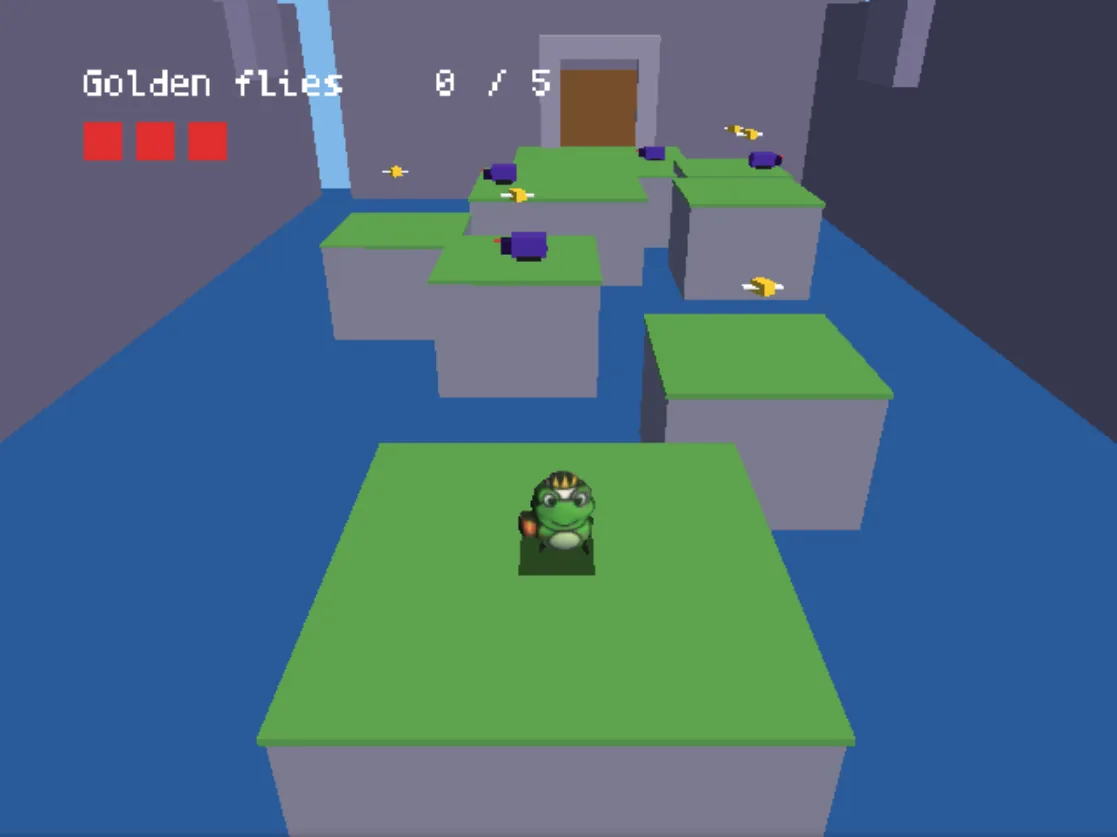
| Nintendo 64 | 320 x 240, early 3D | a solid 3D figure | chunky low-poly 3D |
| GameCube | 640 x 480, lit 3D | a solid 3D figure | lit 3D with shadows and reflections |
| Godot | any size | your picture at full quality | no forced pixel look |

Not sure? One frog drawing, two consoles shows the same picture as a GBA platformer and a GameCube 3D game. You can start the same picture and words on two consoles, one after the other. Each start is its own game in your account, so you can keep both.
2. Add a picture
Step 2 has three tabs:
- Upload a PNG, JPG or WebP: a drawing, a photo, a scribble, a toy.
- Generate a picture from a few words with our built-in image models: Pixel art (3 gems), Detailed (8 gems) or Fast (2 gems).
- Transform a picture you have with words (img2img), such as "turn my dog into a space pilot": Best (8 gems) or Fast (7 gems).
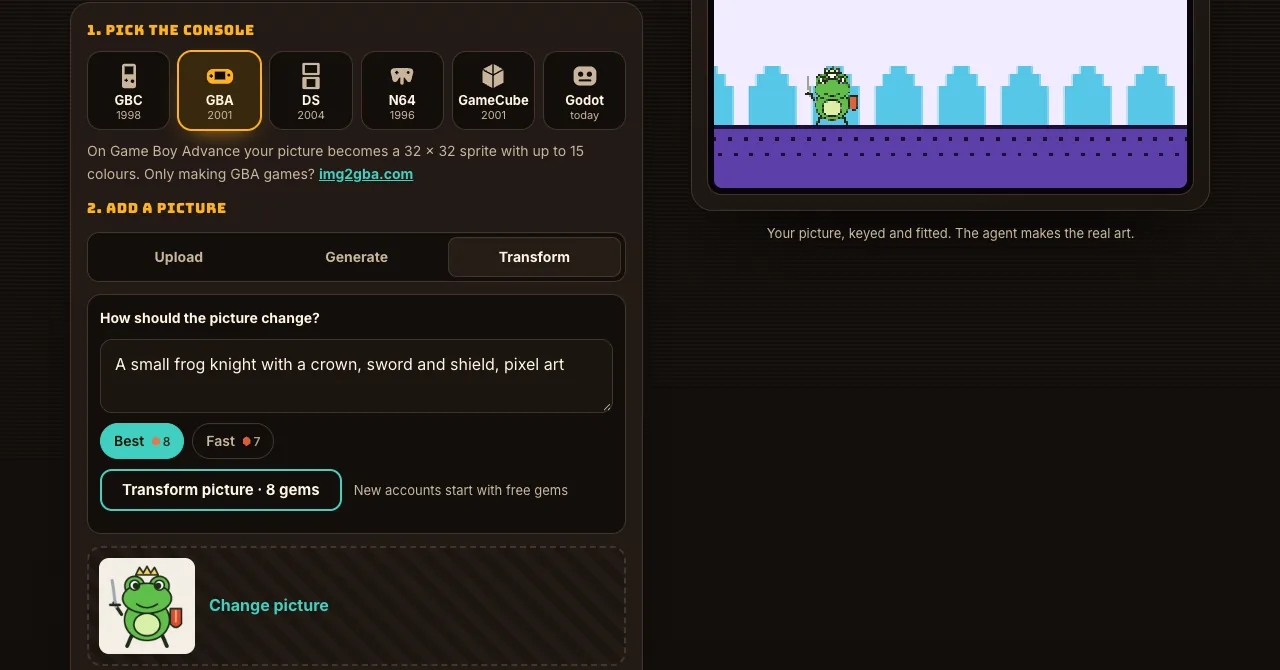
Each image model shows its price in gems on its button before you press it, and you are only charged when a picture comes back. For a character, the site asks for one character, full body, centered on a plain white background, which is what the console sprites need.
A plain background is cut out in your browser before anything is sent. One clear subject works best; a busy photo loses detail on the small consoles.
3. Choose what it becomes
Under the picture, pick its role: the hero, a villain, a collectible or the world (the level's backdrop and colors). On every console the agent is told to use your picture as it is and not to redraw it.
On the N64 and GameCube there is one more choice:
- Solid 3D figure (free, about a second): the outline of your picture is puffed into a rounded, lit body with your picture on it, sized to the console's triangles and texture memory.
- Sculpted 3D model (30 gems, one to three minutes): a fully sculpted model made from your picture.
On the GBC, GBA and DS your picture stays a flat sprite; on Godot it can be either.
4. Say what the game is
Step 3 is a sentence or two about the game. Say what the player does, what the goal is and how it ends:
The idea chips under the box fill in a starting point if you need one. Then press Build my game.
5. Sign in, then watch the agent build it
If you are not signed in, a Shiny Gen sign-in opens on the page itself: make a free account with your email there, or log in; Google, Apple and X sign-in open on shinygen.ai and bring you back. Your account, gems and games are the same on img2retro, on the single-console img2 sites, and in the Shiny Gen app.
The studio opens on img2retro on a new game for the console you picked, and your picture and words become the agent's first message. The agent imports the picture, writes the game for that console's engine, builds it, plays it with the buttons, reads the screen, fixes what it finds and finishes with a short report.
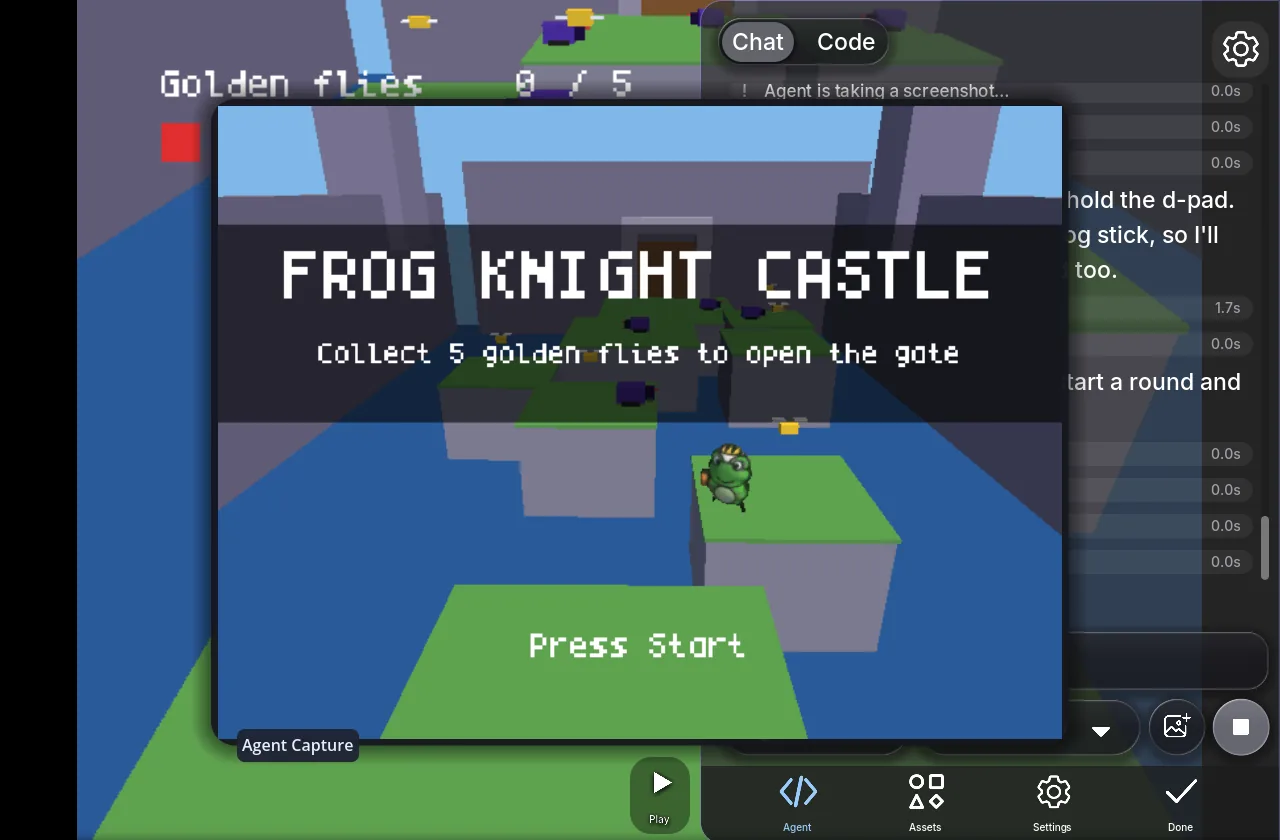
In our test sessions a first game took about 2 to 6 minutes depending on the console, and about ten gems. On a free account the agent pauses to ask before a single very long turn carries on; you press Continue or send a message, and any purchase removes the pause.
6. Play it, change it, share it
Press Play to play it in the tab, with the keyboard, a game controller or touch controls on a phone. Then keep going by chat: a new level, a boss, music, a save. You can also open the Code view and edit the game yourself, which costs nothing.
What you get
- A game in your Shiny Gen account, playable on img2retro, at shinygen.ai and in the Shiny Gen apps for iPhone, iPad and Android.
- A share link anyone can open in a browser. You choose whether others may remix it.
- A ROM file for the cartridge consoles, after any one purchase (packs from $2.99):
.gbc,.gba,.nds,.z64, or.dol(an.isofor GameCube games with levels). Press Share, then the export button. GBA and GBC ROMs made this way have been played on real consoles through a flash cart; DS, N64 and GameCube files are tested in emulators, not yet on real hardware. The Android app does not offer the export yet, so use a browser with the same account. The Shiny Gen ROM export guide has the details.
What is free and what costs gems
Starting, playing and sharing are free. A new account comes with free gems and free agent turns. After that the agent and the image models use gems; packs start at $2.99 and never expire, and any one purchase also unlocks the ROM downloads. A first game on any console usually takes about ten gems. The Gems page has the current packs.
FAQ
Which console should I pick for my picture?
Pick the look you want. GBC and GBA turn your picture into crisp pixel art, the DS adds a second, touch screen, the N64 and GameCube turn it into a 3D figure, and Godot keeps it at full quality. If you are unsure, start with GBA.
Why does my picture look simpler on the Game Boy Color?
Because the console is: a 16 x 16 sprite with four colors keeps the shape and the main colors of a picture, not its detail. Bold pictures with a clear outline survive best. For more detail, pick GBA.
Are these real console games?
Each console is a Shiny Gen engine built to the real machine's screen, colors, sprites and memory budget, and the agent writes code for it the way a homebrew developer would. The cartridge consoles export real ROM files after any one purchase.
Can I make the same game on two consoles?
Yes. Start once on one console, then start the same picture and words on another. Each is its own game in your account.
Do I need a console or an emulator?
No. Every game runs in your browser and in the Shiny Gen apps. An emulator or a flash cart only matters if you download the ROM.
Who owns the games I make?
You do. The art you upload stays yours; please only upload pictures you have the right to use.
Does the AI write the whole game, or just the art?
The whole game: code, levels and rules, around your picture. Your picture is the art for the role you picked; the agent builds the rest for that console, mostly in code.
Further reading
Last updated: November 17, 2026